How to Use Keyboard Shortcuts on Mac Without Memorizing Everything
Keyboard shortcuts on Mac are easiest to learn when you stop treating them as a long list and start grouping them by real situations. You do not need to remember every command in macOS. You need the shortcuts that remove repeated clicks from the way you already work: switching apps, finding files, closing windows, searching Safari, locking the screen and fixing small mistakes.
The most useful Mac shortcuts are built around a few keys: Command, Option, Control, Shift, Fn and Esc. Once you understand what each one usually does, the combinations begin to feel logical rather than random.
Start with the Mac shortcut logic
Mac shortcuts usually follow a pattern. Command handles the main action. Shift often changes direction or extends the command. Option usually reveals an alternate version of the same action. Control appears in system-level actions and special input tools.
Command-C copies. Command-V pastes. Command-P prints. Those are familiar because they match the action directly. The same logic continues across macOS. Command-W closes the current window. Command-M minimizes it. Command-Tab switches between open apps.
Option is the key that many users ignore. It often changes a normal command into a broader or more precise command. Command-W closes the front window, but Option-Command-W closes all windows in the active app. Option-Shift with volume or brightness changes lets you adjust in smaller increments. Once you notice that pattern, many “hidden” Mac shortcuts become easier to remember.
Shortcuts for fixing mistakes quickly
The Esc key is one of the most underrated shortcuts on a Mac. It often cancels the action you just started. If you begin selecting an area for a screenshot and realize the selection is wrong, Esc cancels it. If a webpage is stuck loading, Esc can stop the load. If a dialog or temporary action is active, Esc is often the fastest way out.
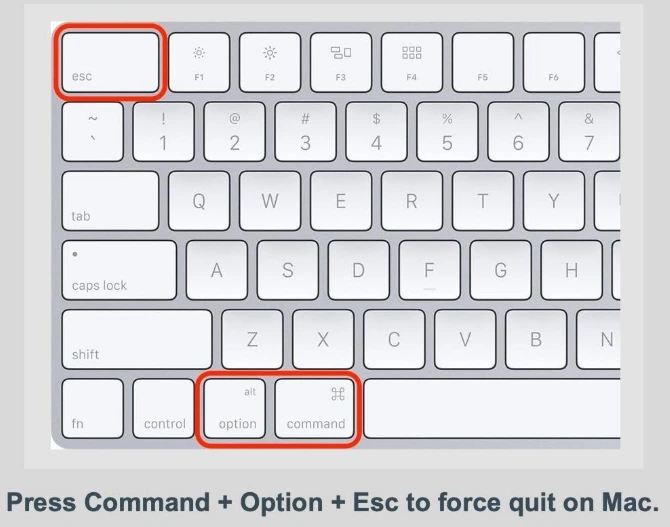
For frozen apps, Option-Command-Esc opens Force Quit. This is the shortcut to remember when an app stops responding and normal clicking does not help. It is not a daily productivity shortcut, but it can save time when a single app slows the whole system.
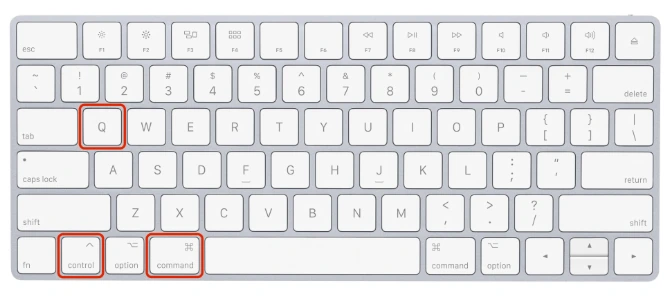
For security, Command-Control-Q locks your Mac immediately. This is useful in an office, coworking space, classroom or any situation where you step away from the screen. It is faster and safer than waiting for the display to sleep.
Finder shortcuts for files and folders
Finder shortcuts are useful because they reduce the need to dig through sidebars and menus. If you work with files often, a few commands make macOS feel much faster.
Command-Y opens Quick Look for a selected file. Spacebar also previews a selected item, but Command-Y is useful to know because it follows the same Finder command logic. You can select a file, preview it, close the preview and move to another file with the arrow keys.
Command-Shift-A opens the Applications folder from Finder. Similar combinations open other important locations: Command-Shift-U for Utilities, Command-Shift-H for Home, Command-Shift-D for Desktop and Command-Shift-I for iCloud Drive. These are most useful when you are already in Finder and want to jump to a common location without reaching for the sidebar.
Command-P can also work directly from Finder. Select a document and press Command-P to open it and bring up the print dialog. That removes the extra step of opening the file first, then choosing Print from the menu.
Window and app control shortcuts
Mac window management becomes easier once you separate windows from apps. Command-W closes the active window. It does not necessarily quit the app. Command-Q quits the app. That distinction matters because many Mac apps stay open after their last window is closed.
Command-M minimizes the front window to the Dock. Option-Command-M minimizes all windows for the active app. Command-Backtick moves between open windows in the current app. This last shortcut is especially useful in Safari, Finder, Word, Pages, Preview and other apps where several windows may be open at once.
Command-Tab opens the application switcher. Keep holding Command and press Tab to move through open apps. If you often switch between a browser, notes, email and a writing app, this shortcut quickly becomes automatic.
There is also a useful desktop trick: hold Command and Option, then click the desktop to hide other open apps and reveal the desktop. It is not as famous as Command-Tab, but it is helpful when the screen is crowded.
Search and navigation shortcuts that save the most time
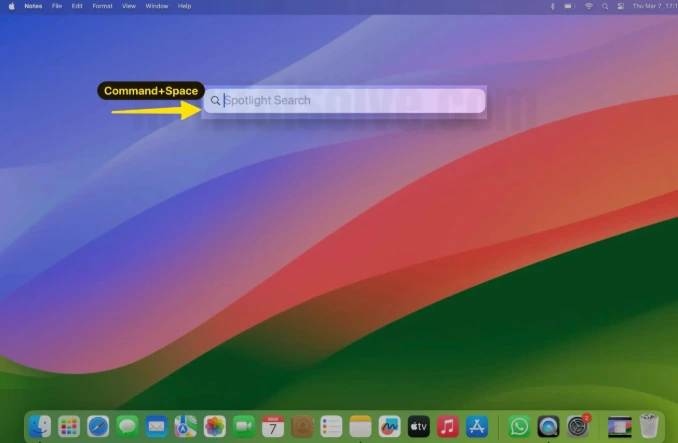
Command-Space opens Spotlight. For many Mac users, this becomes the main launcher for apps, files, settings and quick calculations. Press Command-Space, type what you need and use the arrow keys or Return to open the result.
Command-F searches inside a document, page or Finder window. Command-G moves to the next match after you search, while Shift-Command-G moves back to the previous match. This is especially useful when you are searching a long webpage, PDF or document.
In Safari and many browsers, Command-L selects the address bar. This is one of the fastest shortcuts for searching the web or entering a new website. You do not need to click the bar; press Command-L, type the query and press Return.
Command-left arrow and Command-right arrow move back and forward through browser history. For tabs, Command-Shift-] moves to the next tab, while Command-Shift-[ moves to the previous tab. If you close a tab by mistake, Command-Shift-T reopens the last closed tab.
Safari shortcuts worth keeping
Safari has its own small set of shortcuts that are useful for reading, browsing and research.
Spacebar moves down one screen on a page. Shift-Spacebar moves up one screen. Command-Y opens or closes History. Command-I creates a new email message with the content of the current page, while Command-Shift-I creates a message with the page URL.
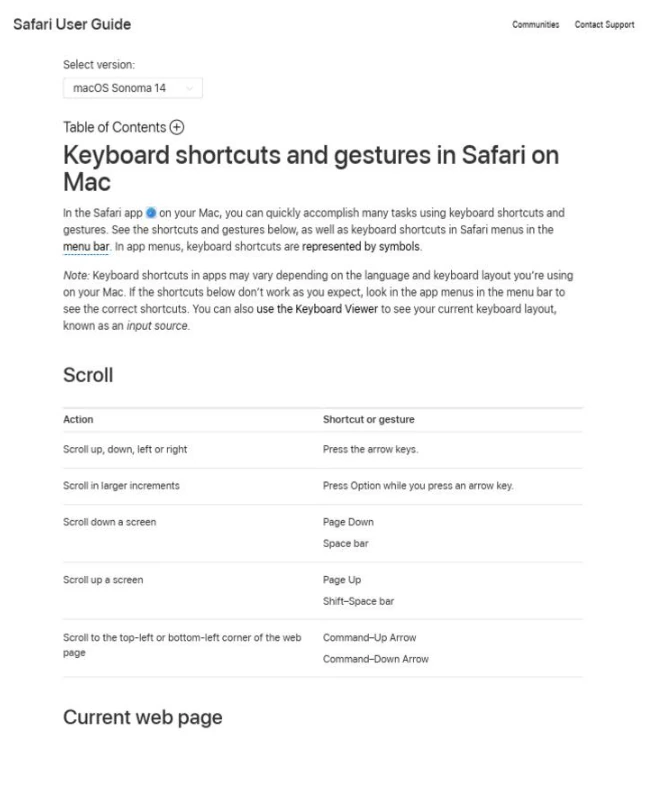
The practical value here is not memorizing every Safari command. It is learning the few that match your browsing style. If you research in many tabs, Command-Shift-T and tab navigation matter most. If you read long pages, Spacebar and Shift-Spacebar matter more. If you often share pages by email, Command-Shift-I is worth remembering.
Shortcuts for symbols, dictation and screenshots
Control-Command-Space opens the Character Viewer for emoji, symbols and special characters. This is cleaner than searching the web for a symbol and copying it from a random page.
Dictation depends on your keyboard and settings. On many current Macs, you can start Dictation with the Microphone key if available, or use the shortcut configured in Keyboard settings. This is useful for drafting quick notes, messages or rough text when typing is inconvenient.
For screenshots, the classic macOS commands are worth learning. Shift-Command-3 captures the full screen. Shift-Command-4 lets you select an area. Shift-Command-5 opens the screenshot controls. If you start selecting the wrong area, Esc cancels the capture before it happens.
Older Touch Bar MacBook Pro models also have specific shortcuts, such as Shift-Command-6 for capturing the Touch Bar. That is only relevant if your Mac has a Touch Bar, so it should not be treated as a general Mac shortcut anymore.
How to change or disable Mac keyboard shortcuts
Some shortcuts conflict with app shortcuts, especially in creative software, coding tools, screen recording apps or productivity utilities. macOS lets you change many system shortcuts.
Open Apple menu, go to System Settings, choose Keyboard and open Keyboard Shortcuts. From there, select a category such as Mission Control, Spotlight, Screenshots, Accessibility or App Shortcuts. You can disable a shortcut by unchecking it where macOS allows it, or change a shortcut by selecting the current key combination and entering a new one.
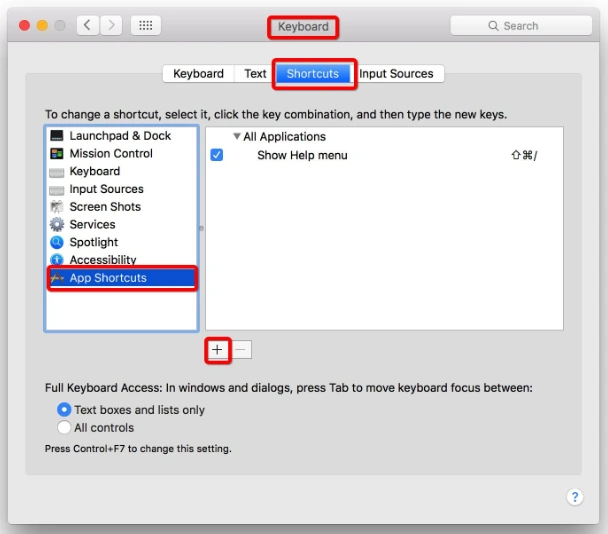
App Shortcuts are useful when you want to create a custom shortcut for a menu command inside one app or across all apps. The important detail is that the menu command name must match the app’s menu wording exactly.
Do not change too many shortcuts at once. Start with one conflict, fix it, use it for a few days, then adjust more if needed. A heavily customized keyboard can become harder to use than the default system.
The best way to learn Mac shortcuts
The best way to learn keyboard shortcuts on Mac is to pick five that match your daily workflow. Do not try to memorize thirty in one sitting.
For most users, a strong starter set looks like this: Command-Space for Spotlight, Command-Tab for app switching, Command-L for browser search, Command-W for closing windows and Command-Control-Q for locking the Mac. Add Command-Shift-4 or Command-Shift-5 if you take screenshots often.
After that, build by category. If you work with files, learn Finder shortcuts. If you browse heavily, learn Safari tab shortcuts. If you write often, learn emoji, dictation and search commands. If you manage many windows, learn Command-Backtick and Option-Command-W.
Keyboard shortcuts are not about showing off. They are about removing tiny interruptions. Each shortcut saves only a few seconds, but the real benefit is focus. Your hands stay on the keyboard, your attention stays on the task and the Mac starts to feel faster without any hardware upgrade.